Campaign Management
The Campaign Management module enables enterprises to create, schedule, execute, and monitor WhatsApp campaigns at scale.
Key Capabilities:
- Bulk Campaign Execution — Target up to 1 million users in a single campaign
- Unicode Messaging Support — Send in multiple regional and international languages
- Security & Compliance — Two-Factor Authentication (2FA) and data encryption in transit and at rest
- Personalized Messaging — Dynamic variables for names, text values, images, videos, and links
- Campaign Analytics — Track sent, delivered, and read counts
- Flexible Scheduling — Send Now or Send Later
Campaigns Dashboard
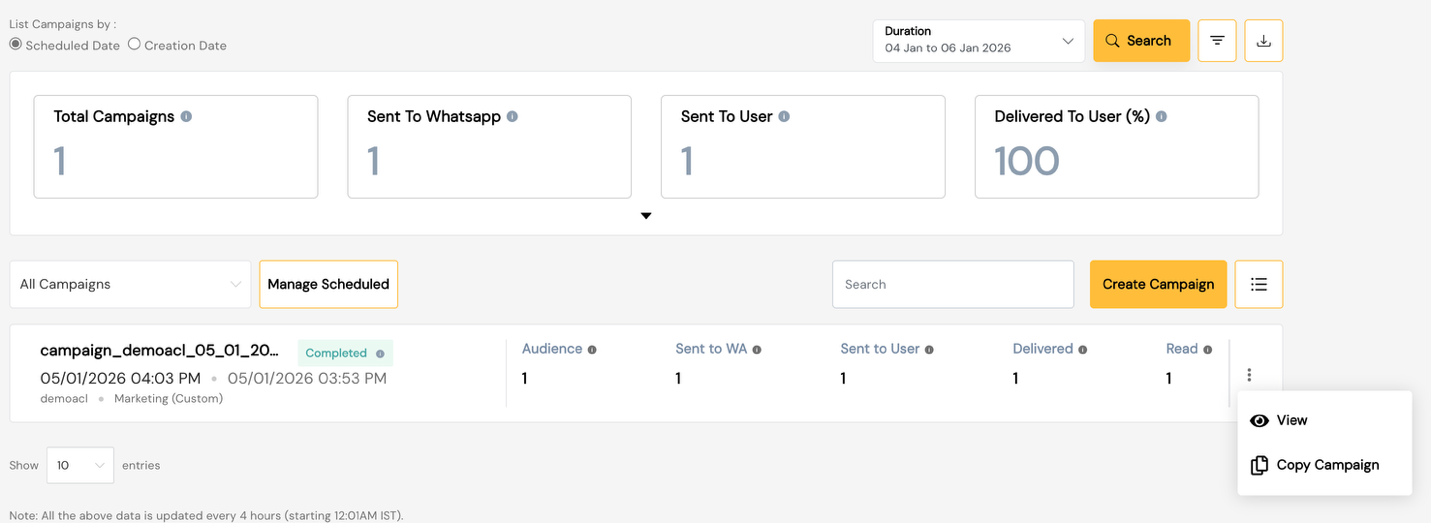
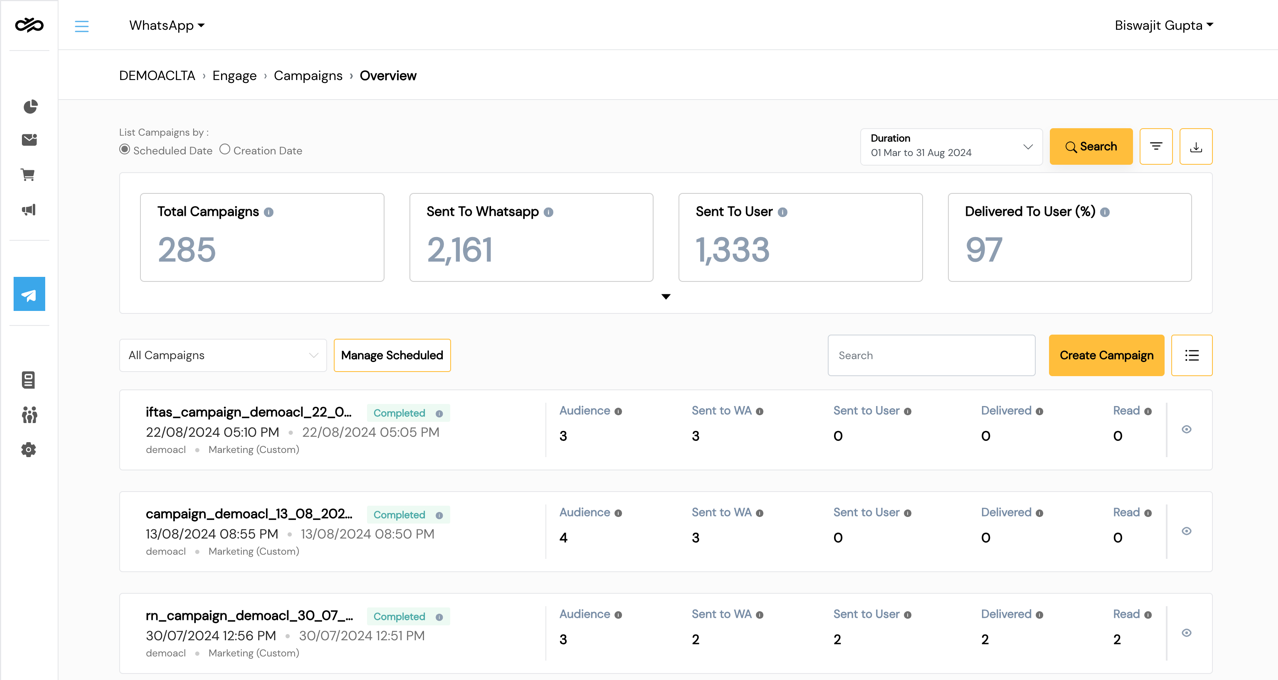
The Campaigns Dashboard provides an overview of all campaigns with:
- Total campaigns created
- Active / Paused / Completed / Scheduled counts
- Quick performance summary per campaign
| Field | Description |
|---|---|
| Campaign Name | User-defined campaign identifier |
| Template Name | WhatsApp template used |
| Status | Draft / Scheduled / Running / Completed / Paused |
| Sent | Messages dispatched |
| Delivered | Messages successfully delivered |
| Read | Messages opened by recipients |
| Scheduled At | Execution date and time |
| Actions | View / Copy / Pause / Stop |
Create Campaign
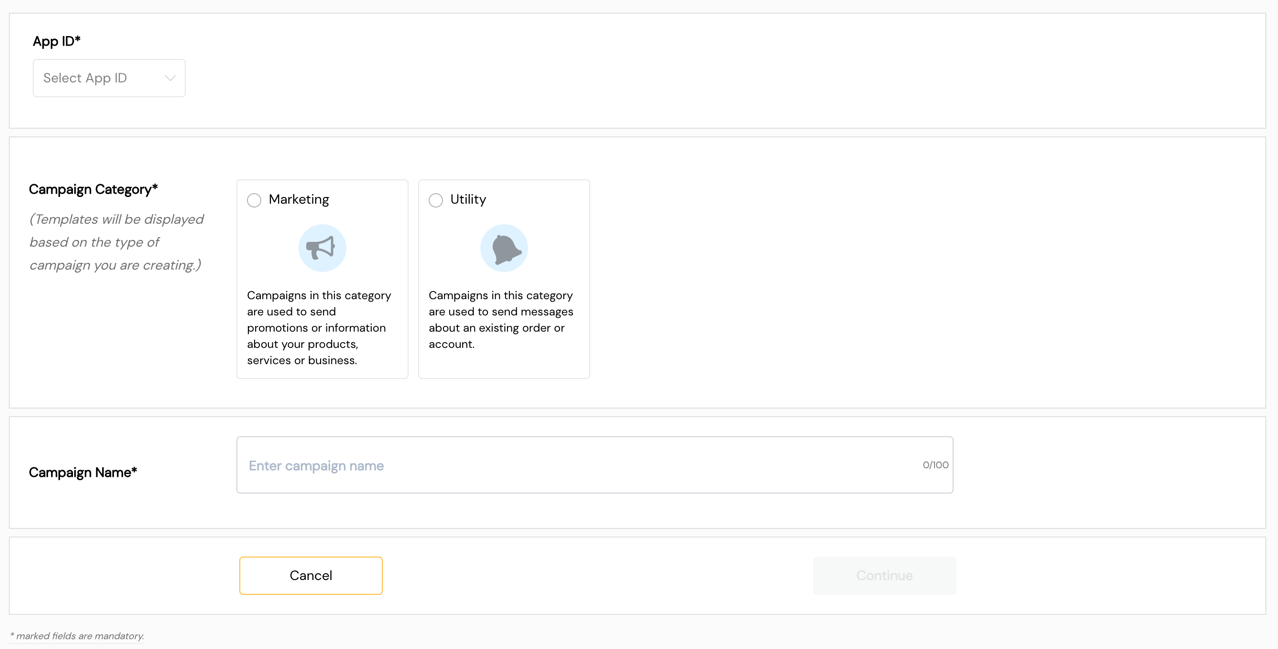
Step 1 — Campaign Details
| Field | Description |
|---|---|
| Campaign Name | Unique name for the campaign |
| Description | Optional notes about the campaign |
| Tags | Classification tags for filtering |
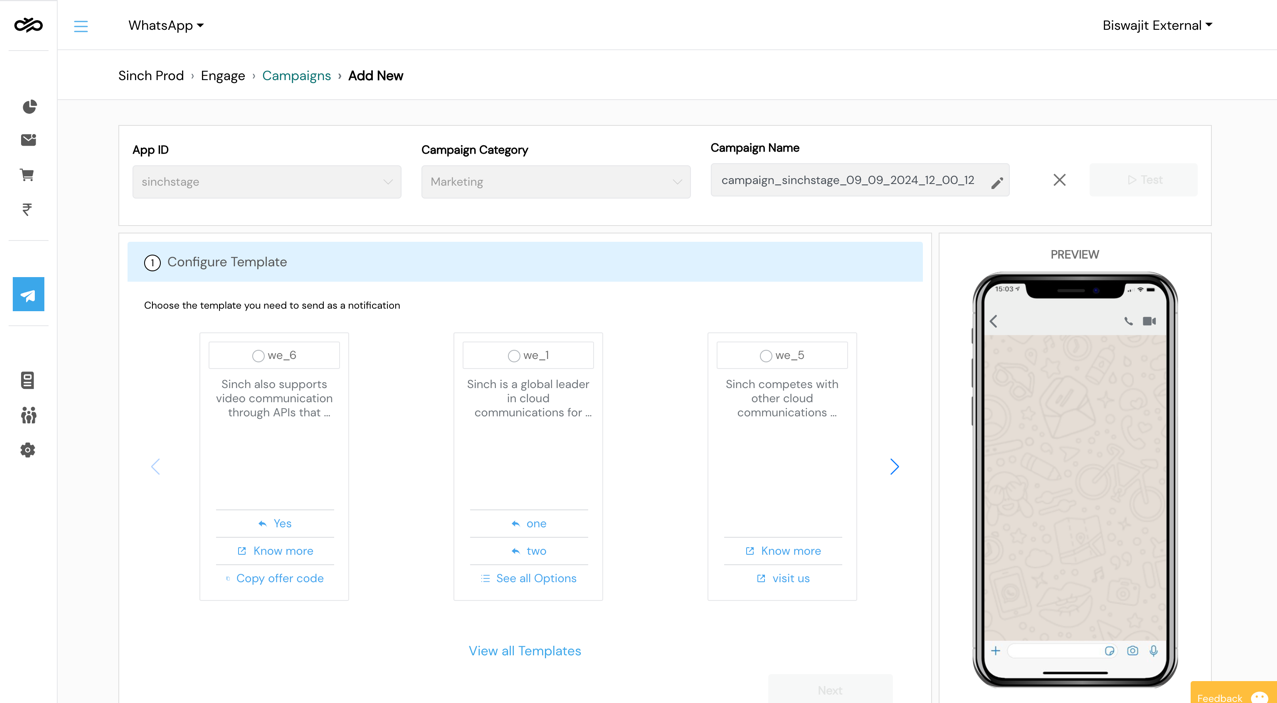
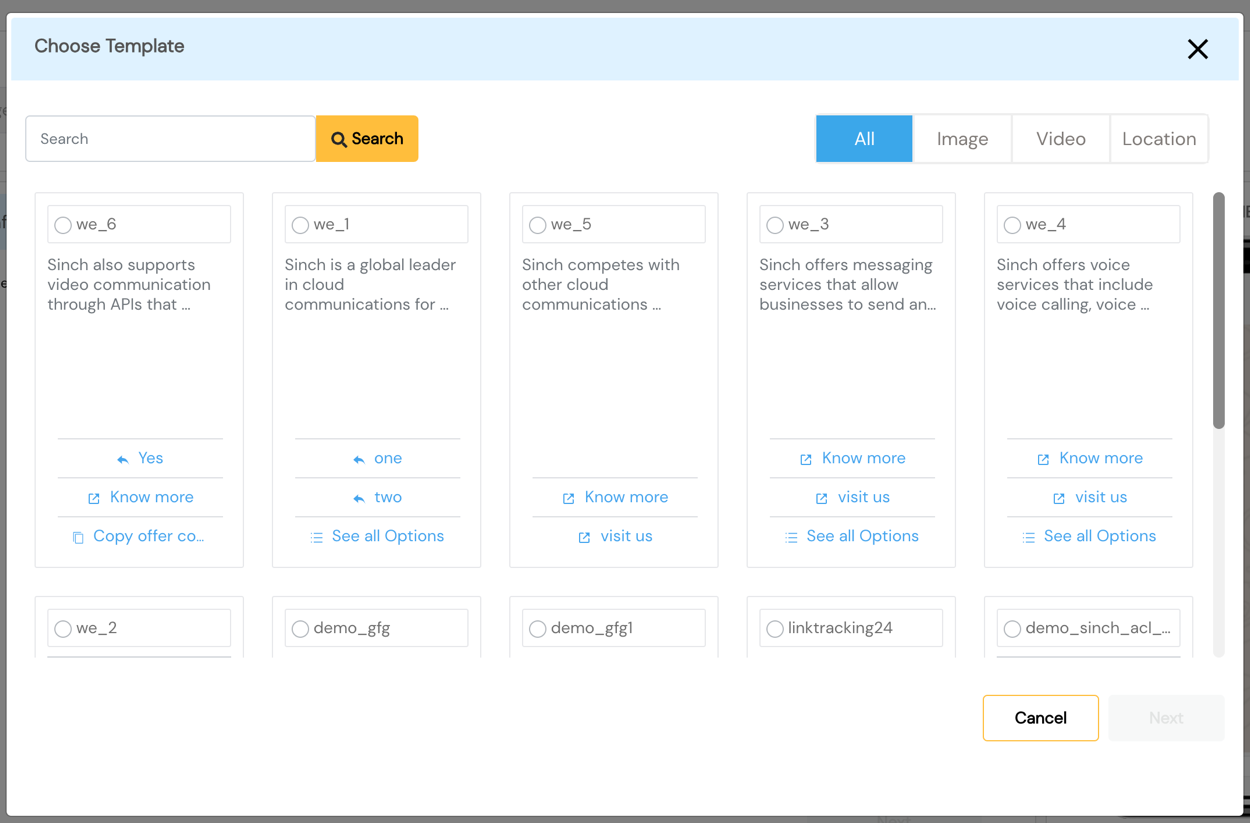
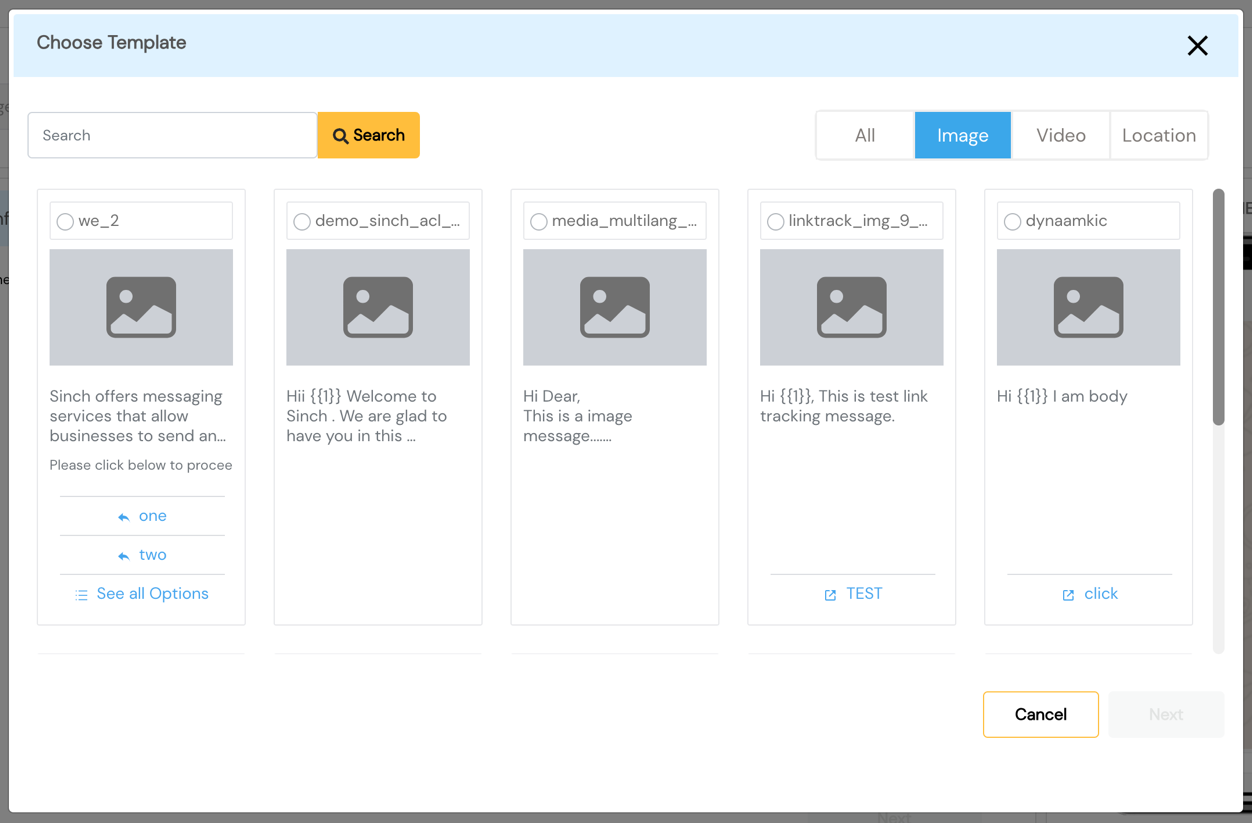
Step 2 — Select Template
Select an Approved WhatsApp template for the campaign.
Template Type:
- Custom — Marketing or Utility templates with standard components
- Carousel — Multi-card marketing templates
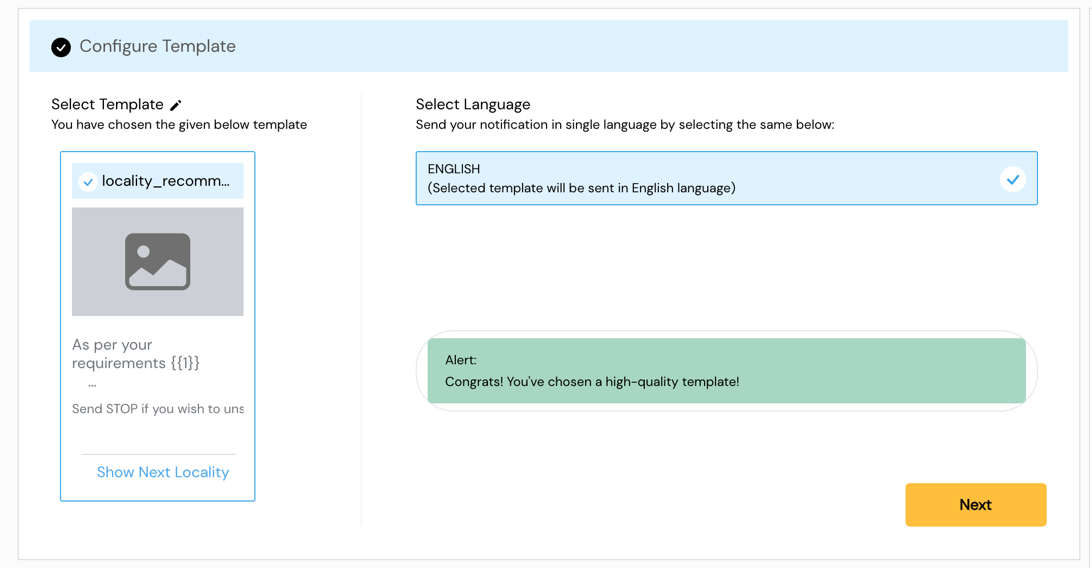
Template Quality Alerts:
SmartTA displays alerts if the selected template has a Yellow or Red quality rating, warning that continued use may result in template suspension.
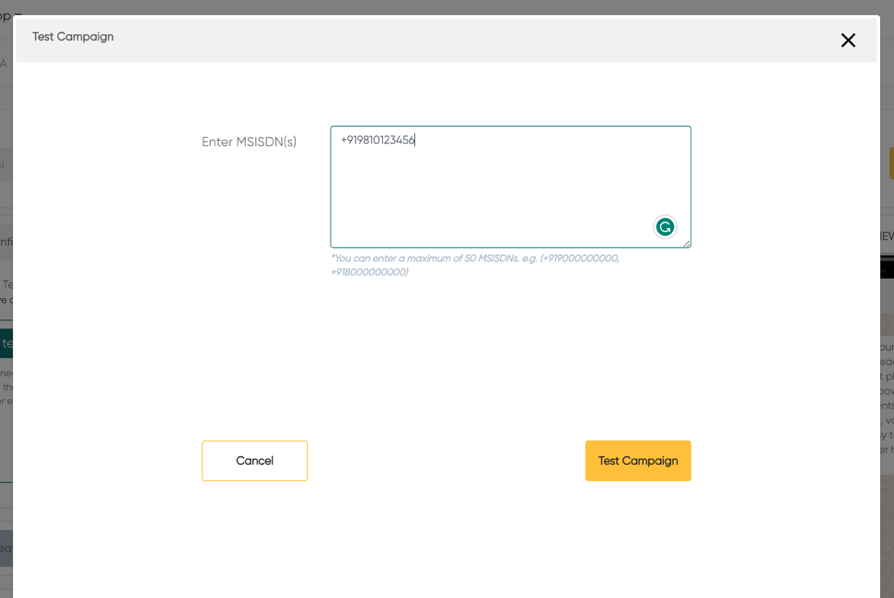
Step 3 — Test Campaign
Before sending to the full audience, use Test Campaign to:
- Send to up to 5 test numbers
- Verify template rendering and variable substitution
- Confirm media loads correctly
Step 4 — Create Audience
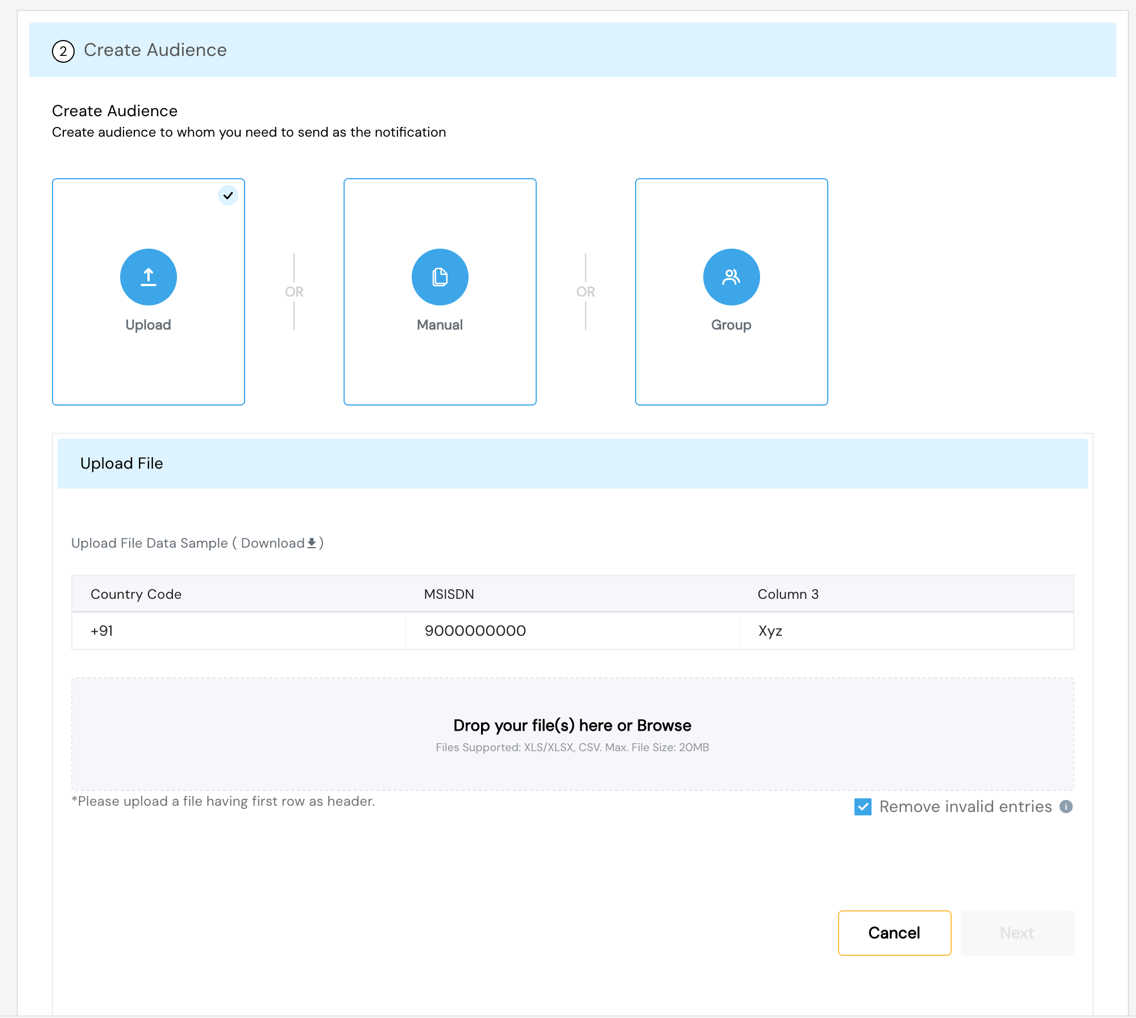
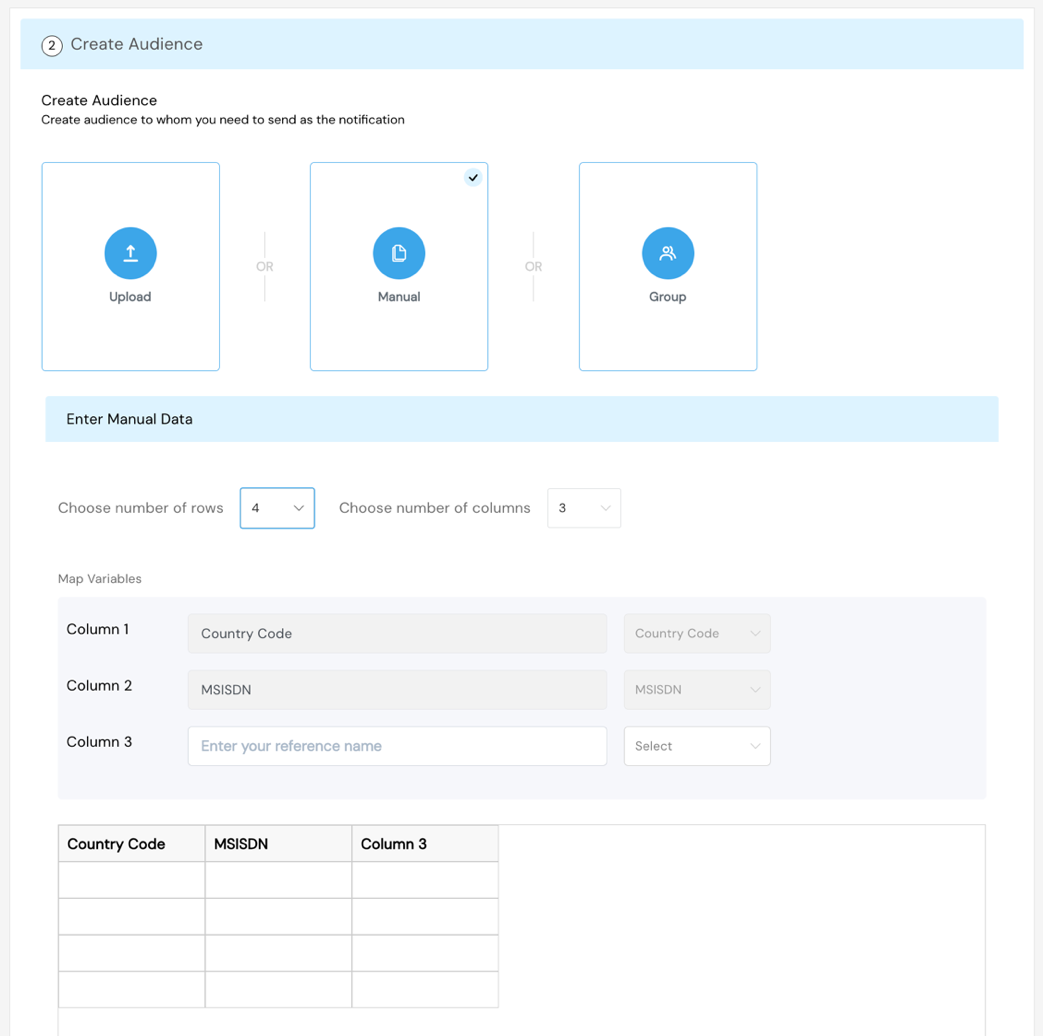
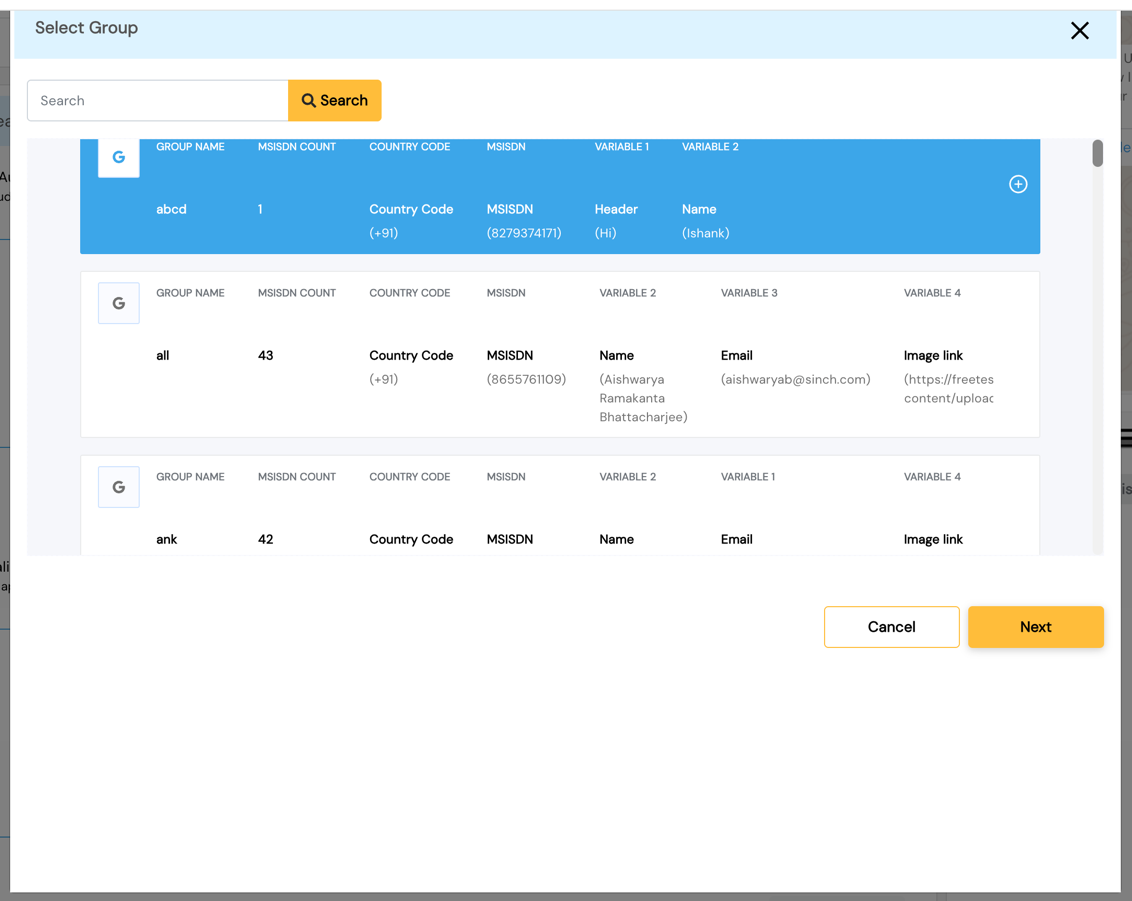
Audience Creation Methods:
| Method | Description |
|---|---|
| Select Group | Use a pre-created group from Group Management |
| Upload File | Upload a new CSV/Excel file (max 20 MB) |
| Manual Entry | Enter up to 100 contacts manually |
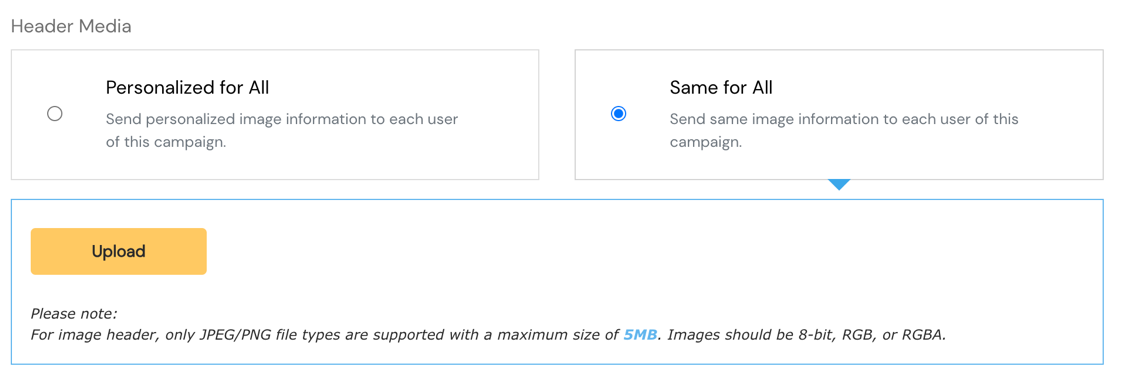
Media Handling:
If the selected template contains media (image/video/document), SmartTA requires:
- Upload the media file at campaign creation
- Supported formats: JPG, PNG (images); MP4 (video); PDF (document)
- Media is reused from previously uploaded assets where available
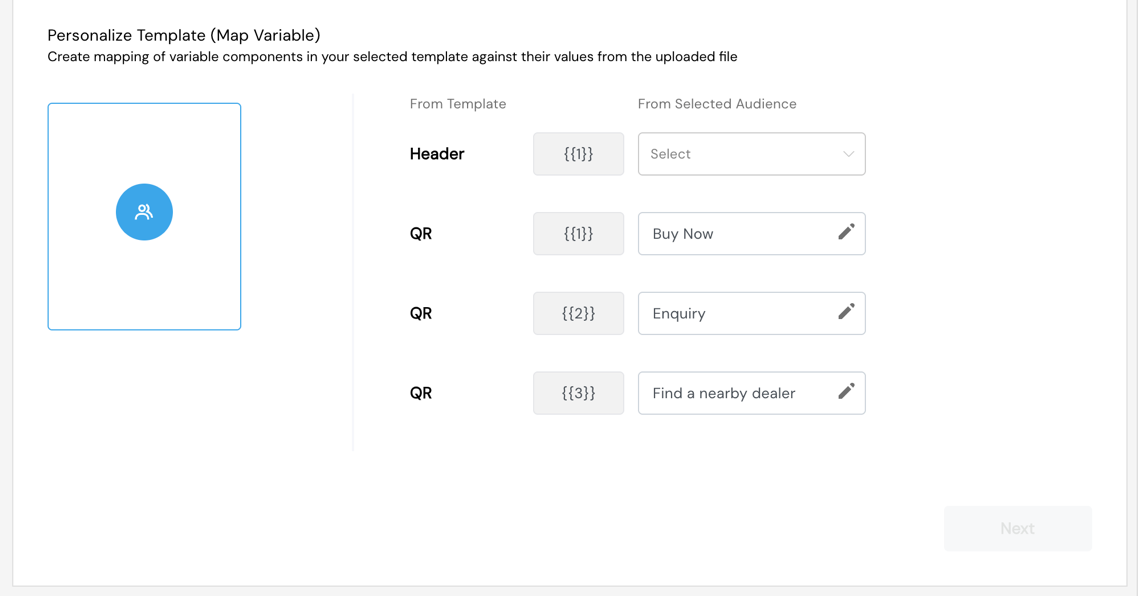
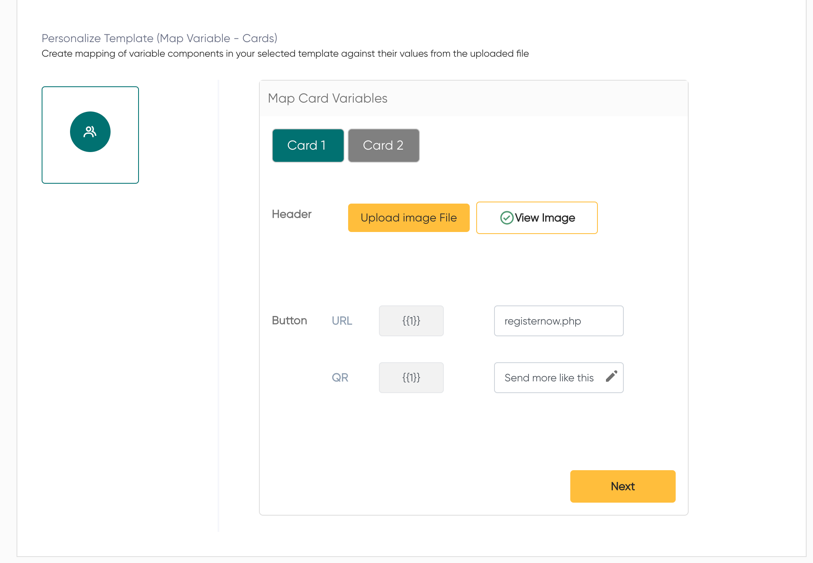
Step 5 — Map Variables
Variable mapping connects dynamic placeholders in the template to audience data columns.
Variable Mapping Scope:
- Header variables — Mapped from a file column or a fixed value
- Body variables — Each
{{N}}placeholder must be mapped - Button URL variables — Dynamic suffix for tracked links
Auto-Detection: SmartTA auto-detects variable columns if the file headers match expected variable names.
Validation Rules:
- All variables must be mapped before proceeding
- Empty or null values in source data will cause row-level errors
- Variable values exceeding character limits will be truncated
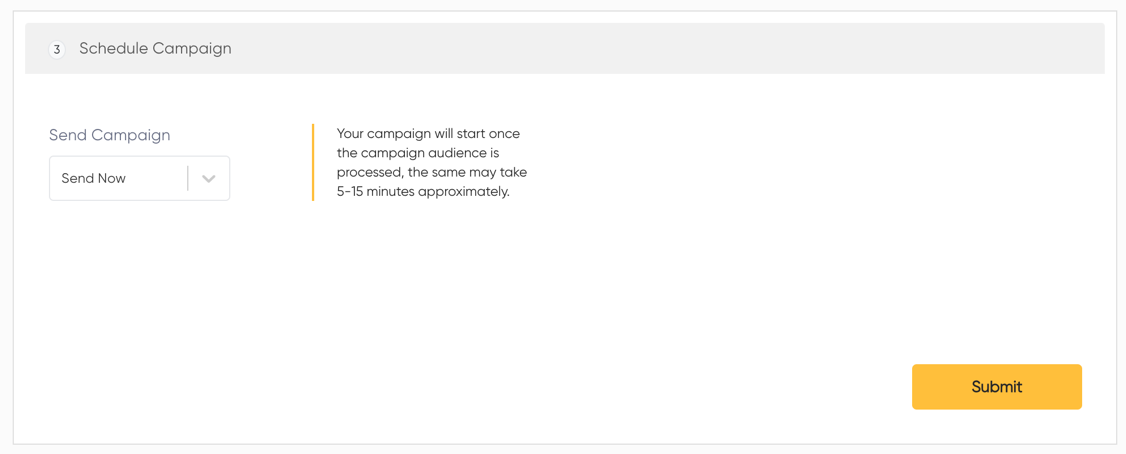
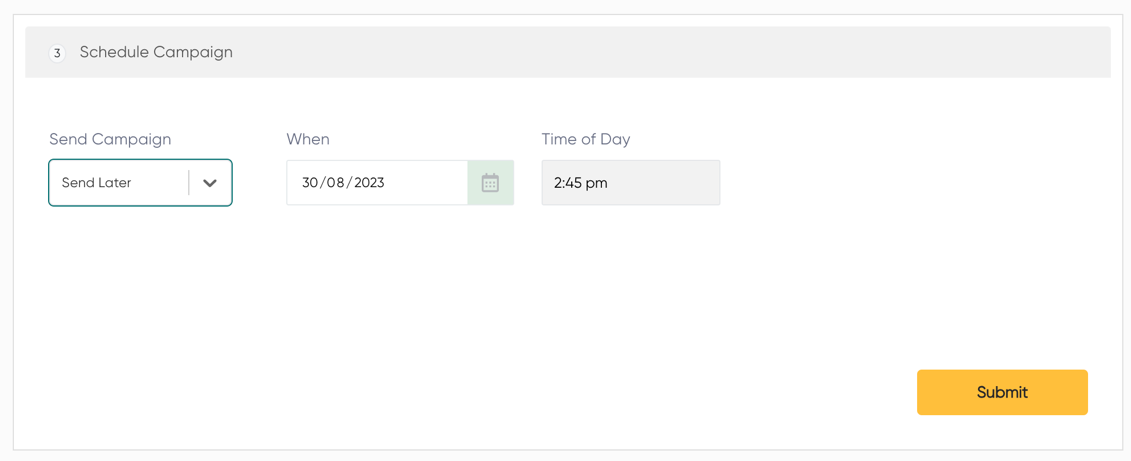
Step 6 — Schedule Campaign
Send Now:
- Campaign is dispatched immediately upon confirmation
- Two-Factor Authentication (2FA) is required to authorize execution
Send Later:
- Select a future date and time for scheduled dispatch
- Campaigns can be edited or cancelled before the scheduled time
Manage Campaign
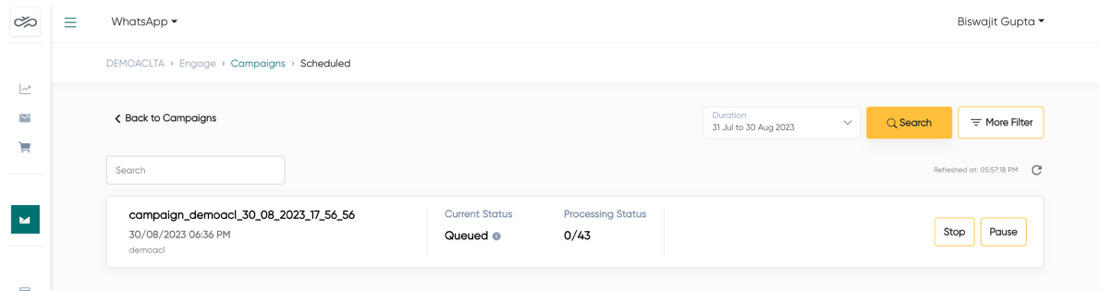
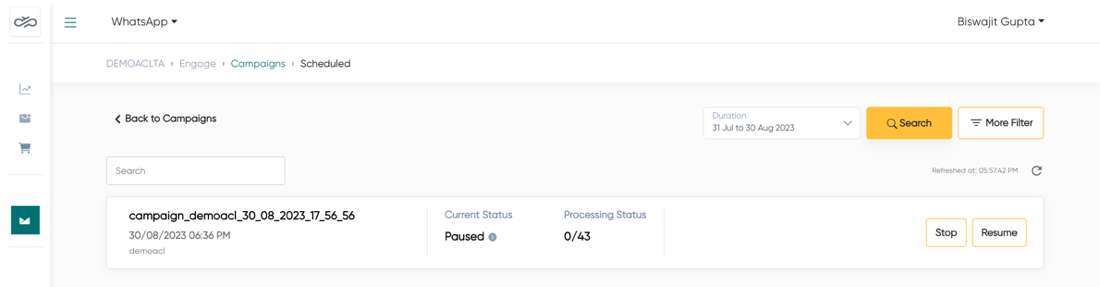
Campaign Control Actions
| Action | Description | Available When |
|---|---|---|
| Pause | Temporarily halts a running campaign | Status: Running |
| Resume | Restarts a paused campaign | Status: Paused |
| Stop | Permanently stops a campaign | Status: Running / Paused / Scheduled |
| Copy | Duplicates the campaign configuration | Any status |
Copy Campaign
The Copy Campaign feature duplicates an existing campaign's configuration, including:
- Campaign name (with "Copy of" prefix)
- Selected template
- Variable mapping configuration
- Scheduling preferences (reset to draft)
Key Limitations:
- Audience data is not copied — a new audience must be selected
- Media files must be re-uploaded if required
- Template must still be in Approved status at time of copy
Insights — Analytics and Reporting
The Insights module provides comprehensive analytics for WhatsApp campaign performance.
Dashboard Metrics
| Metric | Description |
|---|---|
| Sent | Total messages dispatched |
| Delivered | Messages confirmed as delivered to device |
| Read | Messages opened by recipient |
| Failed | Messages that could not be delivered |
| CTR | Click-through rate (if link tracking enabled) |
Reports
Summary Report:
- Campaign-level aggregated metrics
- Filter by date range, campaign name, template, tags
- Export as CSV
Detailed Report:
- Message-level breakdown per recipient
- Includes delivery timestamp, status, and error code for failures
Billing Insights Report:
- Breakdown of messaging charges by template category (Marketing / Utility / Authentication)
- Filter by billing period
Summary Report – Keywords: Track inbound keyword responses from users.
Summary Report – Opt-In: Monitor user opt-in and opt-out activity.
Summary Report – Link Tracking: Measure engagement on tracked links within campaigns.
Screenshots
Campaigns Dashboard
Campaign Details
Template Selection
Template Quality Alert
Test Campaign
Audience Creation
Media Handling
Variable Mapping
Schedule Campaign
Manage Campaign
Copy Campaign